
Facebook Marketplace Delete and Relist Not Working? Check These Issues First

When a delete-and-relist control disappears or fails, the quickest reaction is often to keep clicking. That risks duplicate ads and does not explain the problem. Marketplace features may differ by account, category and region, and an individual listing may not be eligible. Use a diagnostic sequence: check the item, check what the interface actually offers, then inspect the live page before trying again.
Check the state of the original listing
Open the original listing from your selling dashboard. Is it still active, pending review, marked sold or already removed? A listing that no longer exists cannot be handled the same way as an eligible live one. Record its URL and item ID before you make changes. If the item sold, there is no reason to relist it. If the listing is under review, changing or reposting it may not solve the underlying issue. Check any notice from Meta in the account itself rather than guessing from a third-party dashboard. Take a screenshot of the notice if you need to compare it with support guidance later.
Check the account and category controls
The action may not appear in every context. Try the seller's own Marketplace management page on a supported device and compare the exact options shown for that listing. Vehicle, property and ordinary item categories can use different flows. An account or a listing may have a restriction; look for the platform's own notice and follow its appeal or correction path. Do not use new identities, proxies or image edits to bypass a restriction. A third-party tool can only work within the permissions and controls currently available to the account. If the feature is unavailable, write down that fact and choose a compliant alternative, such as editing a live listing.
Check whether the old ad was actually removed
A relist is a sequence, not a single status word. If deletion succeeded but a later post failed, the old ad may be gone and the new ad absent. If the new ad succeeded but the old one remained, buyers could see duplicates. Open the old URL and search the seller's live listings, then compare titles, photos and item IDs. Wait for a reasonable propagation delay before repeating the action, but do not start a rapid retry loop. Record the time of the attempt and any error text. A screenshot of the buyer-facing result tells you more than a generic success notification.
Inspect the new listing data
A missing photo, invalid field, changed category or stale session can interrupt publication. Preview the title, price, condition, location and photo paths. For vehicles and rentals, review the extra category-specific fields. Confirm that the item is still in stock and the described condition is still correct. If Meta rejects the listing, consult its Help Center and Commerce Policies, correct a real issue and use the appeal path if appropriate. Do not rewrite a prohibited item to disguise what it is. If one field is unknown, research it before posting rather than asking automation to guess.
Use FBVerse Bot as an accountable queue
FBVerse Bot's auto-relist page describes selecting listings and scheduling a delete-and-repost cycle. Keep a small test batch and a log of old URL, item ID, action time and new URL. The tool's status alone is not proof that a buyer can see the resulting page. Pause the queue after a partial failure, reconcile live inventory and retry only a confirmed missing ad. Do not assume that the site's claims about timing, metadata or images guarantee acceptance. Platform eligibility and moderation remain Meta's decisions, and sellers remain responsible for the ad's truthfulness.
Know when not to relist
If the item sold, mark it sold. If a buyer conversation is active, answer it before removing the listing. If the problem is an incorrect price or missing detail, edit the existing ad where available. If the account has a restriction, follow the notice and appeal rather than using a tool to work around it. A repeated failure with no clear cause may warrant contacting official support with the listing URL and error screenshot. Good inventory hygiene is often a better answer than forcing a fresh URL. The goal is to show an accurate ad once, not to create activity for its own sake.
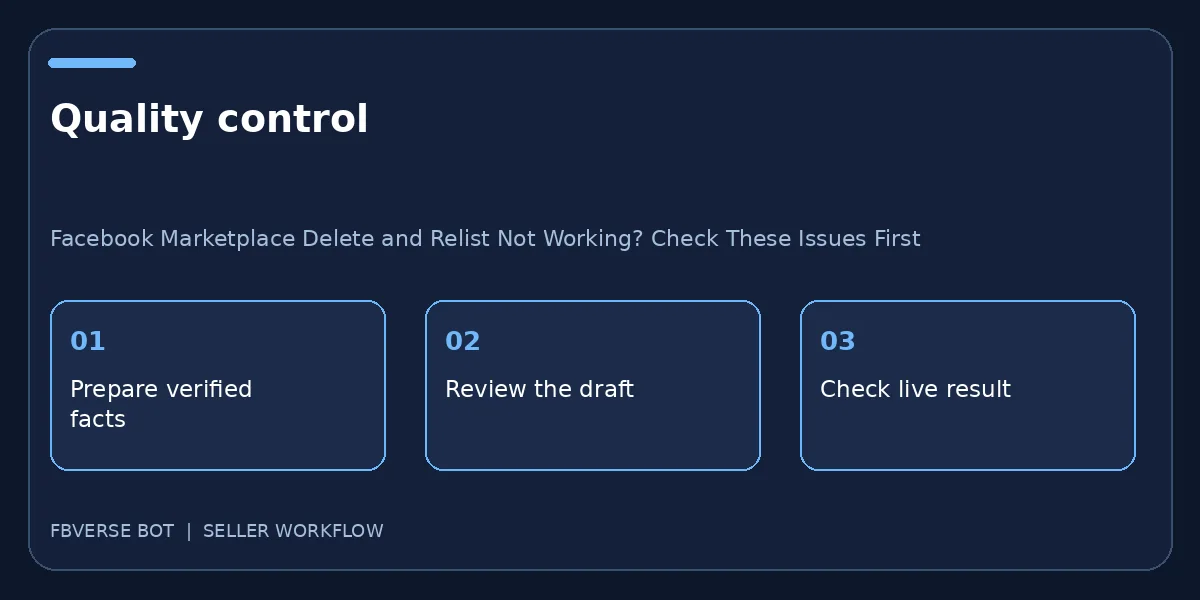
A three-step working checklist
- Inspect original listing state. Verify the item details and that you have the right to list it.
- Check permissions and fields. Keep a record of the listing and review it after publishing.
- Verify final live page. Update the listing or mark it sold when facts change.
What to capture for a support request
A useful report contains the affected listing URL, the approximate time of the attempted action, the exact on-screen error, the account and category involved, and whether the old and new pages exist. Include a screenshot of the relevant notice, but remove passwords, payment information and unrelated buyer details. Explain whether editing, renewing or posting a new permitted item still works; that distinction may help isolate the problem. Do not send a series of identical appeals or retry the action at a high frequency while waiting for an answer. Keep the item status marked “needs review” so another staff member cannot unknowingly start the same relist. If the platform confirms a policy issue, fix the underlying listing or inventory practice before restarting any automation. This documentation is useful even if you never contact support.
Frequently asked questions
Can I retry after a partial failure?
First verify which old and new pages exist. Retry only the missing action after fixing the actual error.
Does changing a photo fix a restriction?
Not necessarily. Follow Meta notices and policies; do not use media changes to evade moderation.
Why might a delete-and-relist job stop?
A queue can fail because of account access, an unavailable listing, a changed interface or an invalid item record. Read the actual error and check live pages before retrying.
Should I repeatedly relist while an account is restricted?
No. Stop the job, read the platform notice and follow the available review or correction steps. Automation is not a workaround for enforcement.
Where FBVerse Bot fits
FBVerse Bot describes this feature at FBVerse Bot feature details. Use it to handle the repetitive part of the workflow, but review the output, follow current Marketplace rules, and do not assume any tool can guarantee ranking, sales or account status.
Further reading
Marketplace features and eligibility vary by account and region. Verify current rules in your own account before acting.