
Facebook Marketplace Photos Blurry? How to Prepare Sharper Listing Images


A blurry first photo can make even a fairly priced item hard to assess. Sometimes the original image is out of focus; other times a crop, upload or connection causes it to look worse on a buyer's phone. Before editing software or reposting the ad, diagnose where quality was lost. The goal is an honest, useful picture of the actual item, not a filter that hides defects.
Check the original file first
Open the image at full size before uploading. Zoom into the label, surface and edges that a buyer needs to inspect. If those details are already blurry, no export setting can restore missing information reliably; take a new photo. Clean the phone lens, hold the device steady and use enough natural light. Tap the object to focus, then avoid a digital zoom that throws away detail. For a vehicle, take a new frame for small damage or an odometer rather than cropping a distant wide shot. For a rental, photograph the actual room in even light and keep vertical lines reasonably straight without stretching its size.
Use a purposeful photo sequence
Lead with a clear overall view that shows the entire object. Add alternate angles, scale, labels and condition details. Buyers should not have to infer whether a chair has a tear or a phone has a cracked screen. Avoid text-heavy collages as the only primary image; small mobile previews can make text unreadable. Store the original files by stock ID so images of similar items are not mixed. If a photo is illustrative rather than of the exact item, say so plainly or replace it. Authentic photos answer questions and reduce disputes more effectively than dozens of nearly identical images.
Check resizing, crop and upload
Keep a reasonably high-resolution original, then export a copy suitable for the posting flow. Do not repeatedly save and re-save a compressed image through messaging apps before upload. Inspect the preview on a phone: an image may be sharp in a file manager but look cropped or softened in a Marketplace card. If the upload fails or shows an older version, confirm the selected file and connection before retrying. A hard numeric dimension is not a universal guarantee because interfaces and categories change. Use the platform's current guidance and inspect the result on the buyer-facing page.
Be careful with automatic image processing
FBVerse Bot describes image processing such as metadata stripping, subtle color and aspect changes and a duplicate-image tool. Those are not the same as restoring a blurry original, and none should be presented as a sharpness repair or a way to bypass moderation. If location metadata is sensitive, stripping EXIF can be a privacy step. If an image tool changes a crop or color, compare the result with the real item and reject anything that misleads. Do not remove a defect or make a product appear larger. The most effective “image tool” for an out-of-focus original remains a better photograph.
Verify the live image from another device
Open the listing after publication and compare the first image with the approved source. Check whether image order, rotation, captions or crop changed. Ask a colleague to view it on another phone if the problem seems device-specific. If only one image is wrong, edit that listing rather than deleting and relisting the whole item without cause. Keep a dated record of the source photo and the correction. If the platform seems to compress every upload, test one new high-quality source and follow current Meta Help rather than applying aggressive sharpening to all pictures.
Measure whether the images answer buyer questions
Listen to inquiries: repeated requests for dimensions, condition or a side view indicate a missing photo even if the current set looks polished. Add the evidence buyers need and keep descriptions consistent with it. For used items, a visible flaw can build trust because the buyer knows what to expect. Image quality is one part of a useful listing, alongside a clear title, accurate price and current availability. No software can guarantee more views simply by modifying image files. Treat the photo workflow as a way to represent the item faithfully and make the next conversation easier.
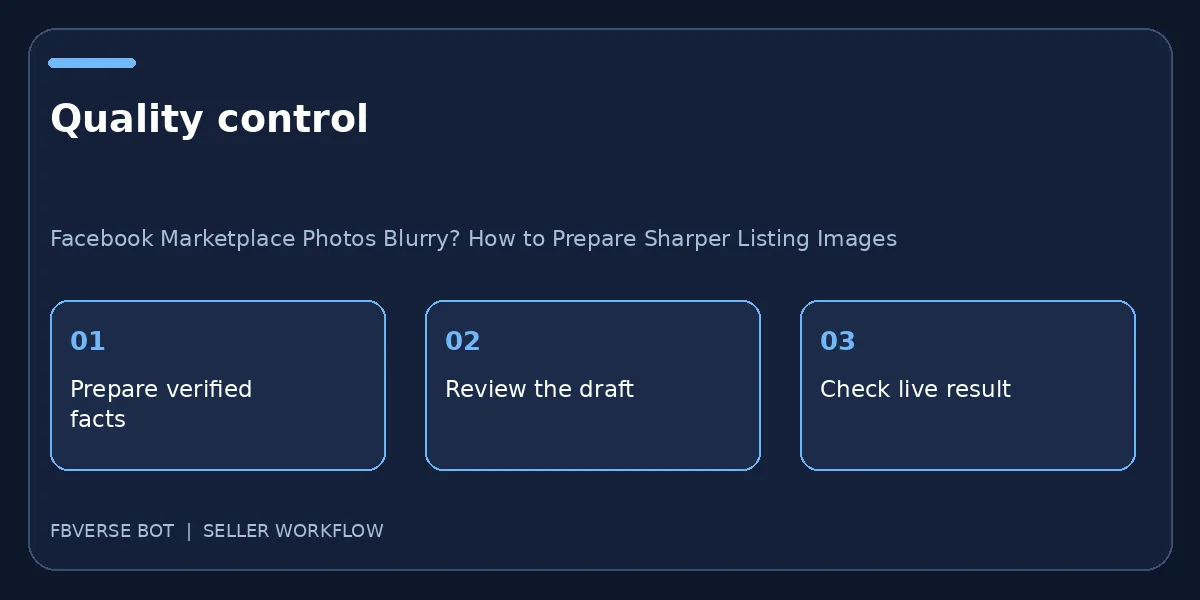
A three-step working checklist
- Inspect the original. Verify the item details and that you have the right to list it.
- Capture clear angles. Keep a record of the listing and review it after publishing.
- Review buyer-facing crop. Update the listing or mark it sold when facts change.
A before-and-after quality test
Select one existing item with a poor first picture. Keep the original file as a reference, then take a new photograph in steady daylight from the same useful angle. Compare the label, texture and condition detail at normal phone size, not only at a zoomed-in desktop view. Export without excessive compression and upload a test image through the ordinary listing edit flow. Check whether the live page displays the new file or a cached old version. If the new photo is clear, update the remaining useful angles; if not, inspect the upload and device before applying another filter. Record the change in the item tracker. This small experiment can isolate whether the camera, editing pipeline or platform preview caused the blur, and avoids batch-modifying a catalog without evidence.
Final quality check before publishing
One more operational check makes this process useful: pick an item that has already changed status, such as a sold product or a withdrawn rental. Walk through the exact steps the team would take now, and see whether the public page, the source record and any automatic reply all agree. If they do not, pause further batches and fix the connection between those records. A published listing is not an isolated piece of text; it is part of an ongoing promise to a buyer. Keep the correction traceable with a date, owner and final URL so the same issue is less likely to recur.
Frequently asked questions
Can software fix an out-of-focus original?
Usually no. Take a new clear photo rather than inventing detail with a filter.
Should I alter photos to avoid duplicate detection?
Do not use edits to evade platform rules. Use accurate images of the actual item and follow current policies.
What image size should I upload?
Use a sharp original at a useful resolution and inspect the displayed listing on a phone. Avoid excessive compression or upscaling a tiny source.
How can I check photos before publishing many listings?
Test a small batch, open the live pages and inspect the main photo and detail shots for crop, focus and color.
Where FBVerse Bot fits
FBVerse Bot describes this feature at FBVerse Bot feature details. Use it to handle the repetitive part of the workflow, but review the output, follow current Marketplace rules, and do not assume any tool can guarantee ranking, sales or account status.
Further reading
Marketplace features and eligibility vary by account and region. Verify current rules in your own account before acting.